Essentials Workspace
Provide employees with a personalisable SharePoint dashboard page configured with widgets, layout templates, and visual styles.
Configuration Guide
- Add the Workspaces page to your SharePoint site.
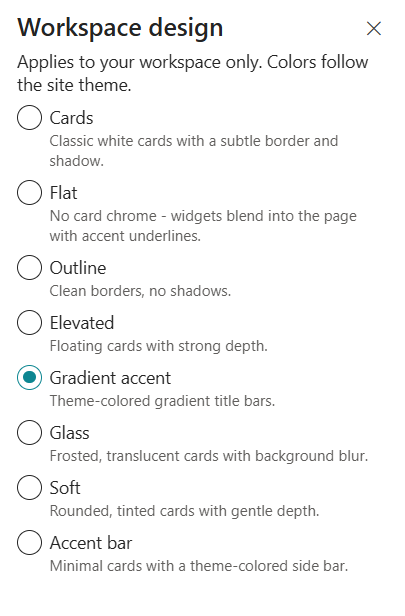
- Choose a workspace design style such as Cards, Flat, Outline, Elevated, Gradient Accent, Glass, Soft, or Accent Bar.
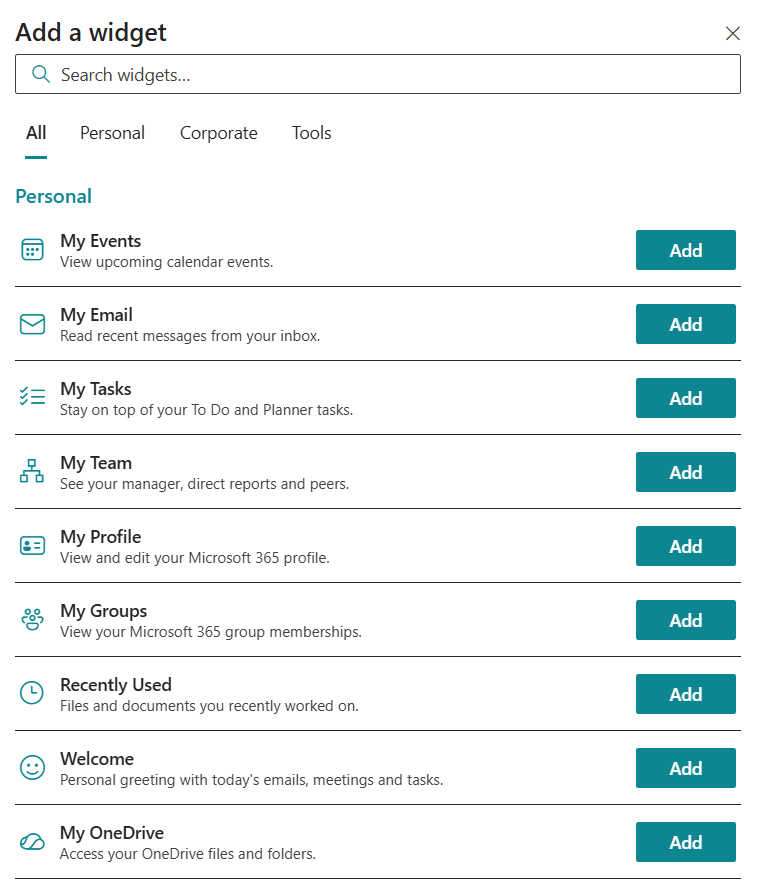
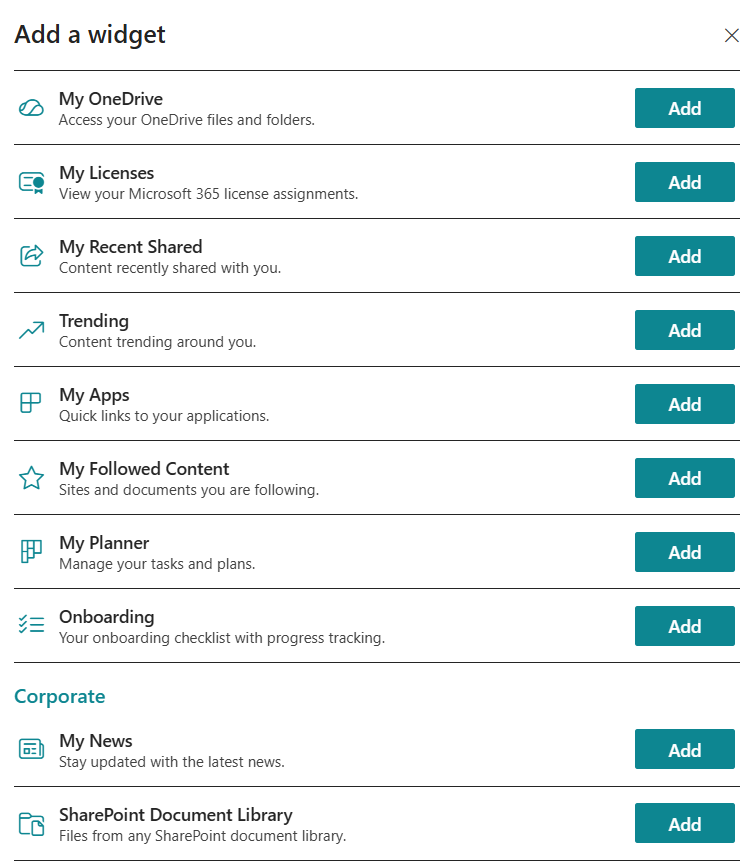
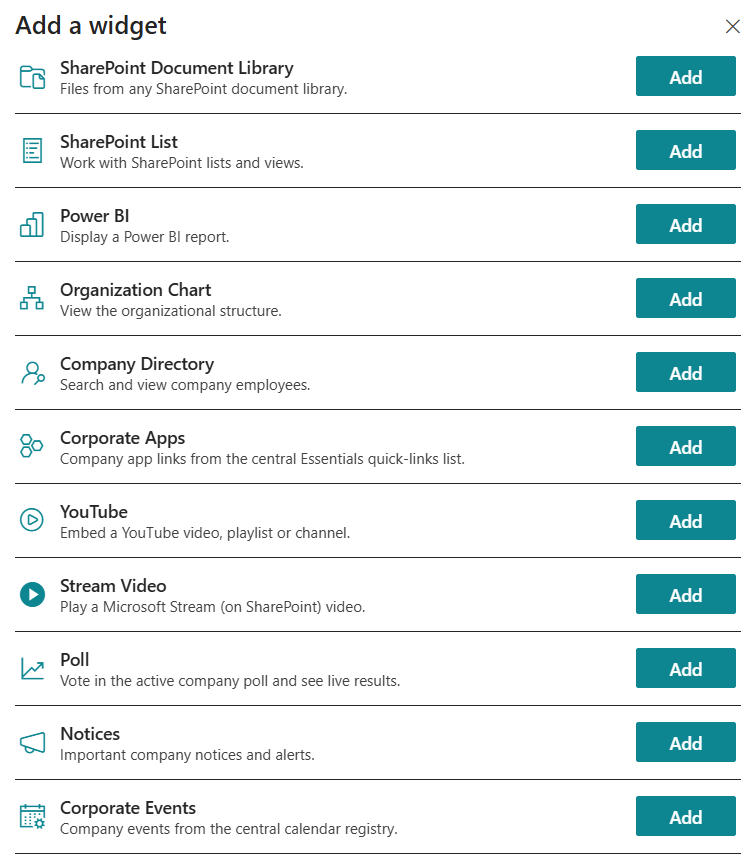
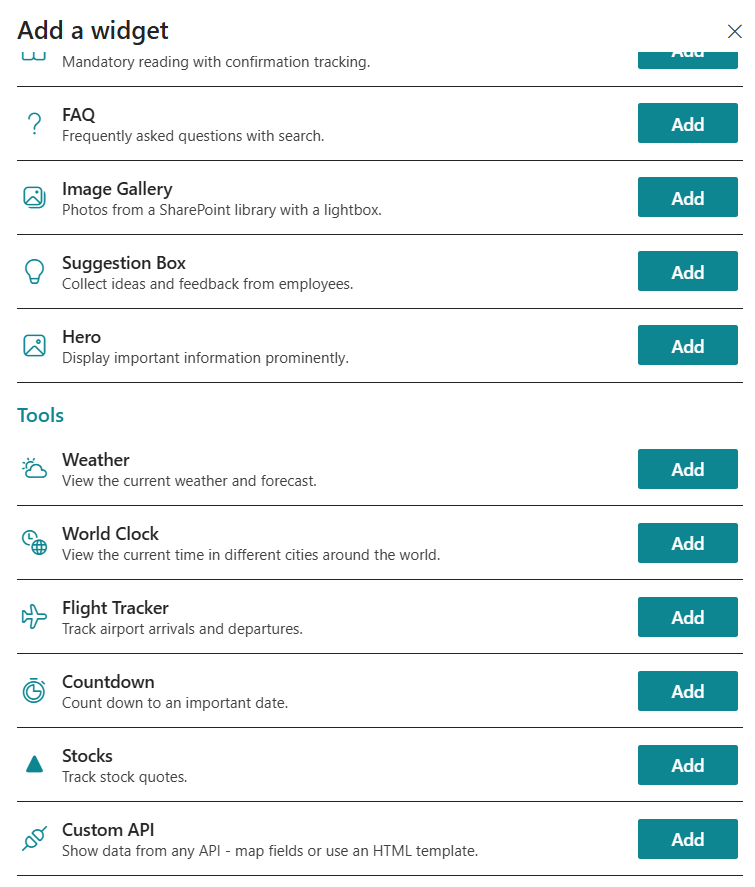
- Open the Configure panel and browse the widget catalog, organised into Personal, Corporate, and Tool categories.
- Add widgets to the workspace by selecting them from the catalog.
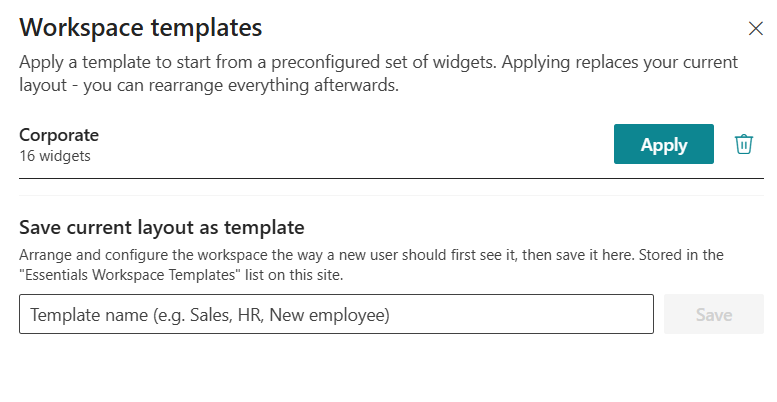
- Apply a pre-configured workspace template or save the current layout as a new template.
- Publish and verify the workspace renders correctly for end users.
Key Features Configuration
| Feature | Description | Configuration |
|---|---|---|
| Workspace design | Choose the visual style for the dashboard | Cards, Flat, Outline, Elevated, Gradient Accent, Glass, Soft, Accent Bar |
| Widget catalog | Browse and add widgets from Personal, Corporate, and Tool categories | Select and place widgets |
| Templates | Apply pre-configured widget layouts or save current layout as a template | Choose or save workspace templates |
| Role-based setup | Tailor templates per department or role for consistent onboarding | Assign templates by role |
Property Pane Options
| Option | Type | Description |
|---|---|---|
| Design style | Dropdown | Select the visual design for the workspace |
| Widget catalog | Panel / Picker | Browse and add widgets from the catalog |
| Templates | Dropdown / Panel | Apply or save workspace templates |
| Role assignment | People/Group picker | Assign templates to specific roles or departments |
Illustration