Essentials Search Filters
Provide refinement options that read active search parameters from the URL and write filter selections back.
Configuration Guide
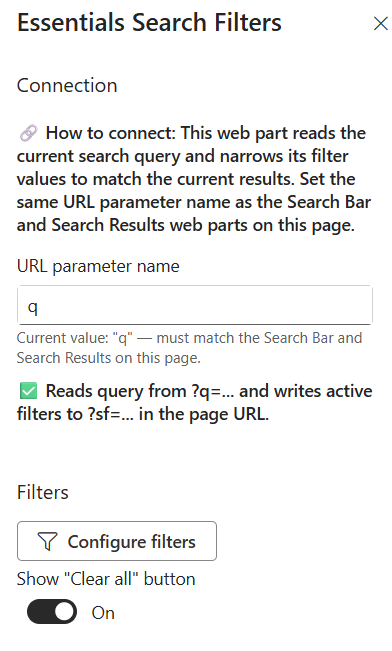
To configure the Essentials Search Filters webpart, edit your page, select the webpart, and open the properties pane on the right.
- How to connect — This webpart reads the active query and dynamically narrows its filter choices to match returned results. Ensure the URL parameter name matches the exact parameter set on the Essentials Search Bar and Essentials Search Results webparts on the page.
- URL parameter name — Set the URL parameter key to listen to for search queries (Default: q). Must match the companion search webparts.
- Reads query & writes active filters indicator — Confirms that the webpart reads search parameters from ?q=... and writes selected refinement parameters to ?sf=... in the page URL.
- Configure filters — Click the Configure filters button to open the filter setup wizard and select which metadata fields or properties users can refine by.
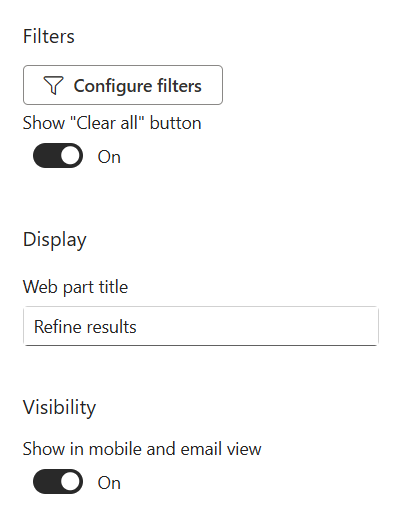
- Show "Clear all" button — Toggle On/Off to show or hide a button that resets all user-selected search filters at once.
- Web part title — Enter a display heading for the filters panel (e.g., Refine results).
- Show in mobile and email view — Toggle On/Off to control whether the filter controls render on mobile devices or in email views.
Key Features Configuration
| Feature | Description | Configuration |
|---|---|---|
| How to connect | Placement and shared configuration | Same page as Search Bar and Search Results, matching URL parameter name |
| URL parameter name | Key listened to for search queries | Free-text field (default: q) |
| Reads query & writes active filters | URL state behaviour | Reads ?q=..., writes selected refinements to ?sf=... |
| Configure filters | Which metadata fields users refine by | Configure filters button opens the setup wizard |
| Clear all button | Reset all selected filters at once | Toggle On/Off |
| Web part title | Display heading for the filters panel | Free-text field (e.g., Refine results) |
| Mobile & email view | Filter control rendering on mobile and email | Toggle On/Off |
Property Pane Options
| Option | Type | Description |
|---|---|---|
| URL parameter name | Text | Key to listen to for search queries (default: q) |
| Reads query & writes active filters | Indicator | Confirms ?q=... reads and ?sf=... writes |
| Configure filters | Button | Opens the filter setup wizard to select metadata fields |
| Show "Clear all" button | Toggle | Show or hide the reset-all-filters button |
| Web part title | Text | Display heading for the filters panel |
| Show in mobile and email view | Toggle | Control whether filter controls render on mobile devices or email views |
Illustration