Essentials Image Gallery
Showcase image collections from document library folders or curated image URLs, with control over grid columns, captions, and image limits.
Configuration Guide
To configure the Essentials Image Gallery webpart, edit your page, select the webpart, and open the properties pane on the right.
Image Source
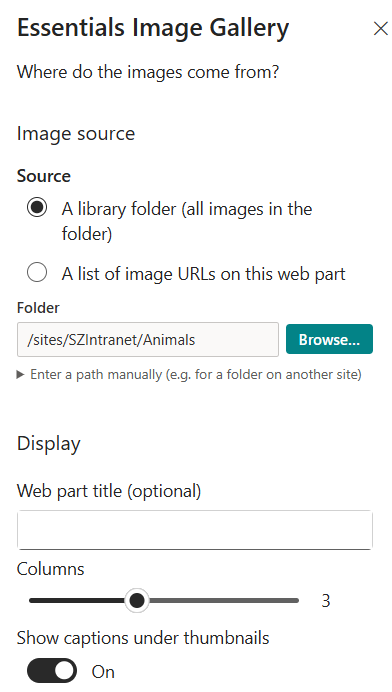
Choose where the webpart retrieves its images.
Source Selection:
- A library folder (all images in the folder) — Automatically displays all supported image files residing in a designated document library directory.
- A list of image URLs on this web part — Manually specify custom image URLs directly within the webpart settings.
Folder Path & Selection:
- Folder Input Field — Displays the currently selected site and folder path (e.g., /sites/SZIntranet/Animals).
- Browse... Button — Opens a file browser to select a target document library folder visually.
- Manual Path Entry — Expand the "Enter a path manually" section to type a direct path (useful for targeting folders located on external or cross-site libraries).
Display Settings
Customize the visual layout and structure of the image grid:
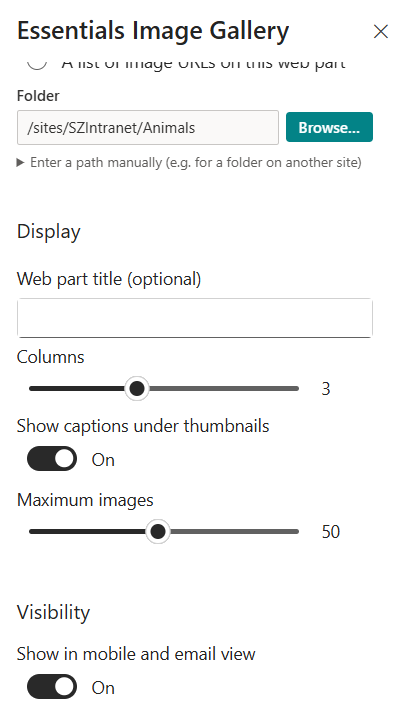
- Web part title (optional) — Add a custom header title above the gallery (leave blank to hide).
- Columns — Adjust the slider to set the number of grid columns across the gallery (e.g., 3 columns).
- Show captions under thumbnails — Toggle On/Off to display or hide text captions underneath each image thumbnail.
- Maximum images — Adjust the slider to set the maximum limit of images rendered by the webpart (e.g., up to 50 images).
Visibility Settings
Manage client and device layout settings:
- Show in mobile and email view — Toggle On/Off to enable or hide the gallery layout when viewed on mobile screens or email renderings.
Key Features Configuration
| Feature | Description | Configuration |
|---|---|---|
| Image source | Where the webpart retrieves its images | Document library folder or custom image URL list |
| Folder selection | Target folder for library images | Folder input field, Browse... button, or manual path entry |
| Web part title | Optional header title above the gallery | Free-text field (blank hides the title) |
| Columns | Number of grid columns in the gallery | Slider (e.g., 3 columns) |
| Captions | Show or hide captions under thumbnails | Toggle On/Off |
| Maximum images | Cap on the number of images rendered | Slider (e.g., up to 50 images) |
| Mobile & email view | Gallery visibility on mobile screens and email renderings | Toggle On/Off |
Property Pane Options
| Option | Type | Description |
|---|---|---|
| Source | Radio | A library folder (all images in the folder) or a list of image URLs on the web part |
| Folder | Input + Browse | Site/folder path with Browse... button and manual path entry |
| Web part title | Text | Optional header title above the gallery |
| Columns | Slider | Number of grid columns across the gallery |
| Show captions under thumbnails | Toggle | Display or hide captions underneath each image thumbnail |
| Maximum images | Slider | Maximum number of images rendered (up to 50) |
| Show in mobile and email view | Toggle | Enable or hide the gallery in mobile screens and email renderings |
Illustration